thELanee.github.io
CSE 15L Lab Report
Hello incoming CSE 15L students! This is a tutorial on how to log into your course-specific account on ieng6.
Step 1: Installing VScode
Go to the Visual Studio Code Website and download the application for your OS.
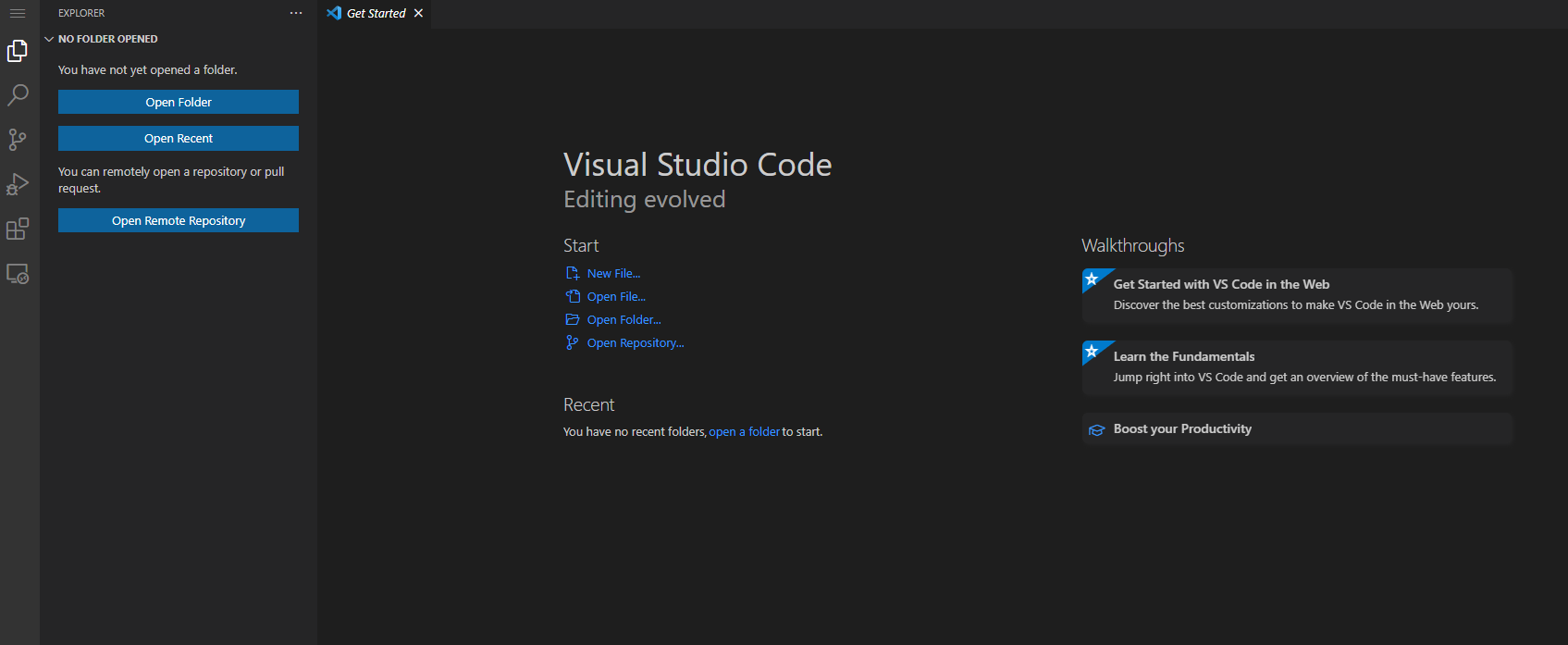
Once you install and open the app, you should see something like this:
Step 2: Remotely Connecting to ieng6
First, if you are using Windows, you will need to install OpenSSH so that your computer can connect to other computers. Afterwards, look up your course-specific account for CSE15L here.
Then, open VScode and open the terminal with the terminal -> new terminal menu option. Once the terminal is opened, enter the following command, with the zz replaced by the letters in your account.
ssh cs15lsp22zz@ieng6.ucsd.edu
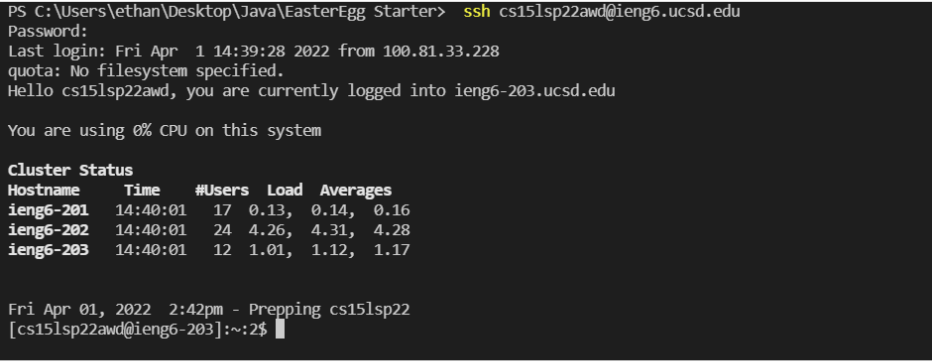
If it is your first time connecting to the server, you will probably get a message stating that the authenticity of the host ‘ieng6.ucsd.edu’ can’t be established. Respond yes to the prompt that asks if you want to keep connecting. Then you should be prompted to type in your password. If it is correct, your terminal will print out something like this:
Step 3: Run Some Commands
Some commands you can run are cd, ls, pwd, mkdir and cp. These commands can be run on both your computer and the remote computer and do different things.
For example, the ls -a command prints out all the files in the directory, including hidden files.

Step 4: Moving Files with scp
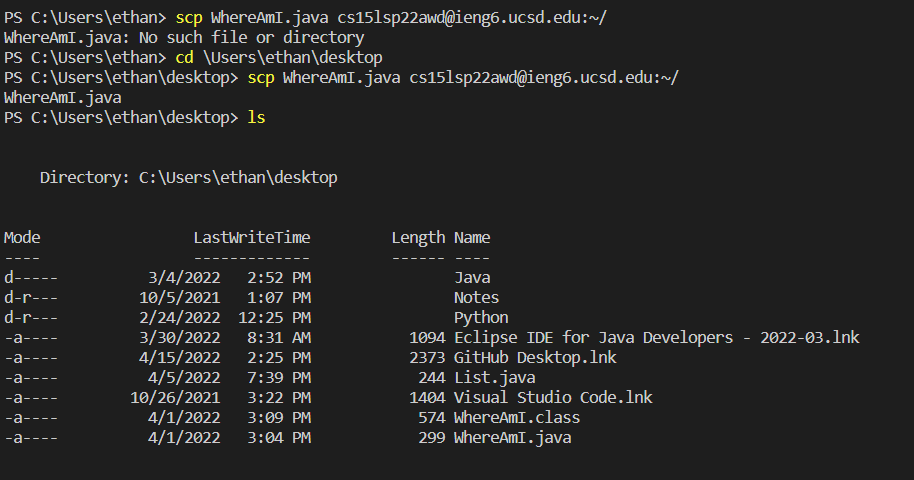
scp allows you to copy files back and forth between the local and remote computer. If I were to create a file on my computer titled WhereAmI.java, I can copy it to the remote computer using this command (with your actual username):
scp WhereAmI.java cs15lsp22zz@ieng6.ucsd.edu:~/
After correctly entering your password and using the ls command, you should see the file in your home directory. You can even run it on the remote computer. If you are successful, you should get something like this:
Step 5: Setting an SSH Key
As you have seen, most commands that connect to the server require you to input your password. Creating an SSH key allows you to run these commands without typing in your password everytime. To set this up, run the following commands:
ssh-keygen (ssh-keygen -t ed25519 if on Windows)
When prompted to enter a file to save the key in, enter:
(/Users/<user-name>/.ssh/id_rsa): /Users/<user-name>/.ssh/id_rsa (with the correct username)
If you want to set up a passphrase to use the ssh key, enter one. If you do not wish to use a password, just leave the field empty and press enter. You should get something like this:
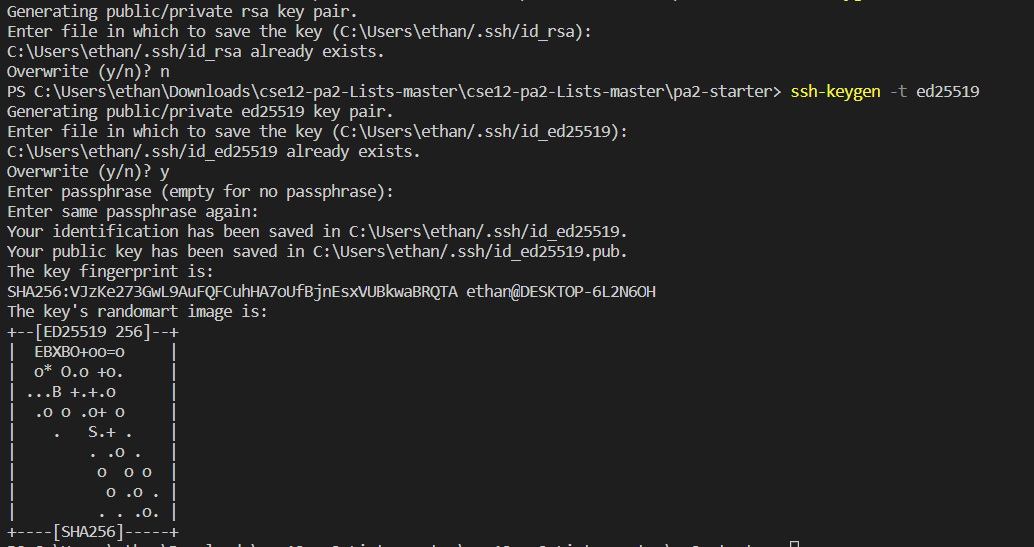
Now we can copy the public key to the .ssh directory of your user account on the server.
  ssh cs15lsp22zz@ieng6.ucsd.edu
  <Enter Password>
  mkdir .ssh
  <logout>
  scp /Users/<user-name>/.ssh/id_rsa.pub
  cs15lsp22zz@ieng6.ucsd.edu:~/.ssh/authorized_keys
Once you do this you should be able to ssh or scp from this client to the server without entering your password like so:
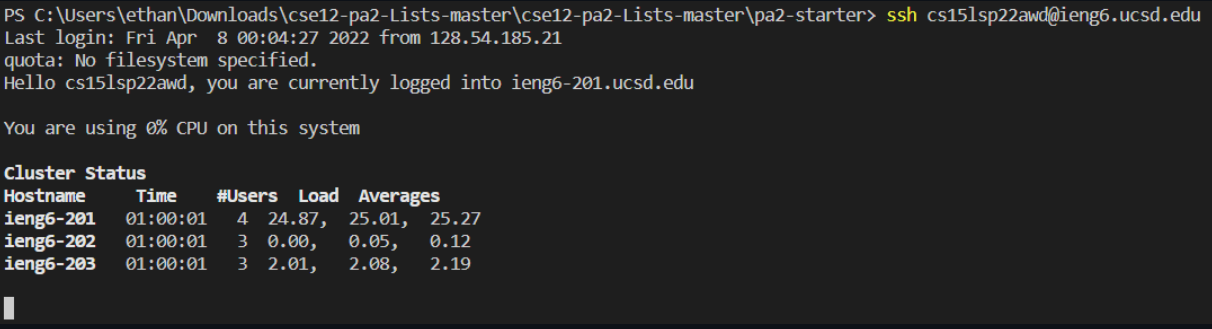
Step 6: Optimizing Remote Running
Some techniques you can do to optimize remote running are:
-
Writing a command in quotes at the end of an ssh command to directly run it on the remote server then exit
-
ssh cs15lsp22zz@ieng6.ucsd.edu "ls" -
Using semicolons to run multiple commands on the same line in most terminals
-
cp WhereAmI.Java OtherMain.java; javac OtherMain.java; java WhereAmI -
You can use the up-arrow on your keyboard to recall the last command that was run
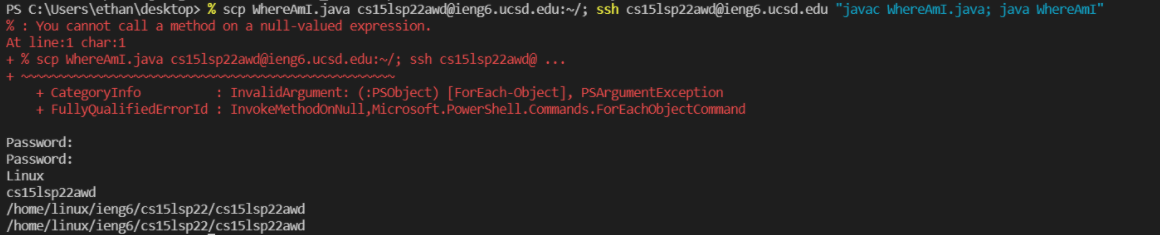
Here’s an example of running multiple commands in one line: